
Section outline
-
-
Accessing IGNITE!
IGNITE will be the only additional tile that displays for you under the my Course section.
You can click on the tile itself to take you to the actual IGNITE space.

-
Navigating between sections
Your ease of access and navigation was one of the first considerations we made when designing myNGI.
There are multiple ways you can use to navigate any page, jumping from one section to another, or jumping back all the way to the module page.
myNGI home button is the easiest and fastest way to navigate to the home screen from anywhere within the site.
Navigation between sections can be done in three different ways.
- The Breadcrumb navigation bar on the top of your screen will always show you which section you are currently in and which section you can jump back to. The section on the far right will always be your current location. This section will always display in this order: Module Page > Section > Activity.
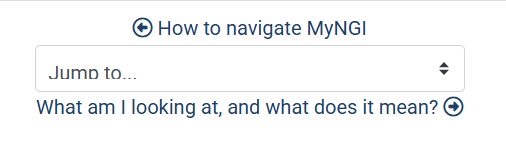
- At the bottom of each Learning Unit or Topic page, you will see a jump navigation where you can either go back to the previous topic or go forward to the next. Alternatively, you can use the navigation drop-down menu to jump to any open section within the module page.
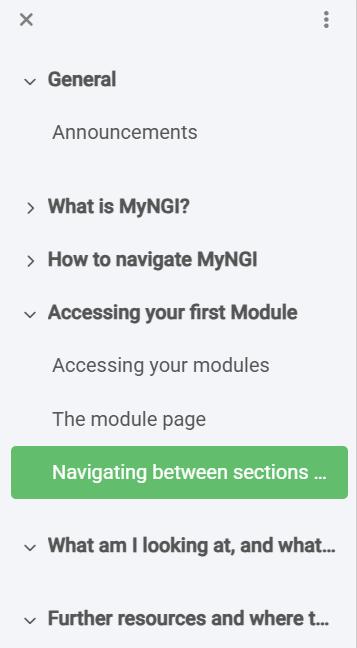
- To the left of your screen you can choose to open or close a navigation block that displays all of your available sections, resources and activities loaded.
- For mobile browsers, your navigation can easily take you back one page, by clicking the "back" button on your browser.
Now that you have a better idea on how to navigate, click the link below to go to IGNITE!
-
Breadcrumb navigation example

2. Jump Navigation
3. Navigation Block
-