
Section outline
-
-
Accessing your modules
All your registered modules will display on your home page in a tile format.
Each module will be displayed with a Tile picture and its full name.
To access a module, you can either click or tap on the tile image.

-
The module page
Each module has been created to provide you with the same information types, within the same places.
The Module name will always be displayed at the top of the page, followed by a short welcome note.
Underneath this section, you will find tiles that organise your module content into an easy-access space.
- Learning Journey - Here you will find all the appropriate information for this specific module, as well as your module guide.
- Assessments - Your assessment briefs, assessment submission sections and ICE activities will be listed here
- Learning Units - Your module content is grouped into thematic sections we call learning units. This section will provide you with a short and powerful summary of the learning unit and what to expect.
- Topics - Topics are grouped into each learning unit. Each learning unit may have several topics attached to it. In these sections you will find all the needed resources, activities and content you will need to complete before moving onto the next topic in the learning unit.
-
Navigating between sections
Your ease of access and navigation was one of the first considerations we made when designing MyNGI.
There are multiple ways you can use to navigate any page, jumping from one section to another, or jumping back all the way to the module page.
MyNGI home button is the easiest and fastest way to navigate to the home screen from anywhere within the site.
Navigation between sections can be done in three different ways.
- The Breadcrumb navigation bar on the top of your screen will always show you which section you are currently in and which section you can jump back to. The section on the far right will always be your current location. This section will always display in this order: Module Page > Section > Activity.
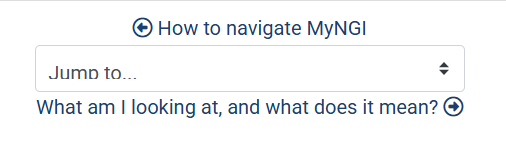
- At the bottom of each Learning Unit or Topic page, you will see a jump navigation where you can either go back to the previous topic or go forward to the next. Alternatively, you can use the navigation drop-down menu to jump to any open section within the module page.
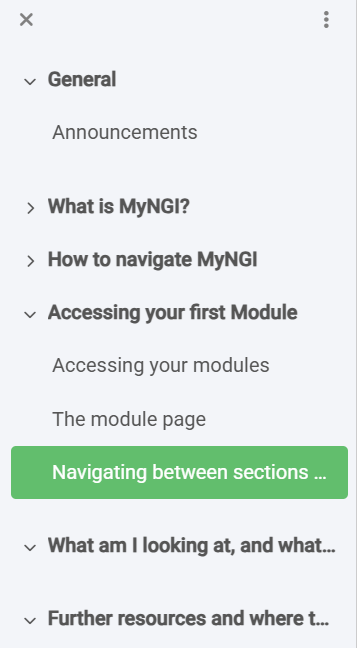
- To the left of your screen you can choose to open or close a navigation block that displays all of your available sections, resources and activities loaded.
Now that you have a better idea on how to navigate, lets jump into the various activities you can expect when you engage with your module content.
-
Breadcrumb navigation example

2. Jump Navigation
3. Navigation Block
-